Network, SSL & Firewall
Everything that governs how the Keel appliance reaches — and is reached over — the network lives under Settings: host network interfaces, the TLS certificate the dashboard is served with, and the inbound firewall rules that decide which ports are open.
Network
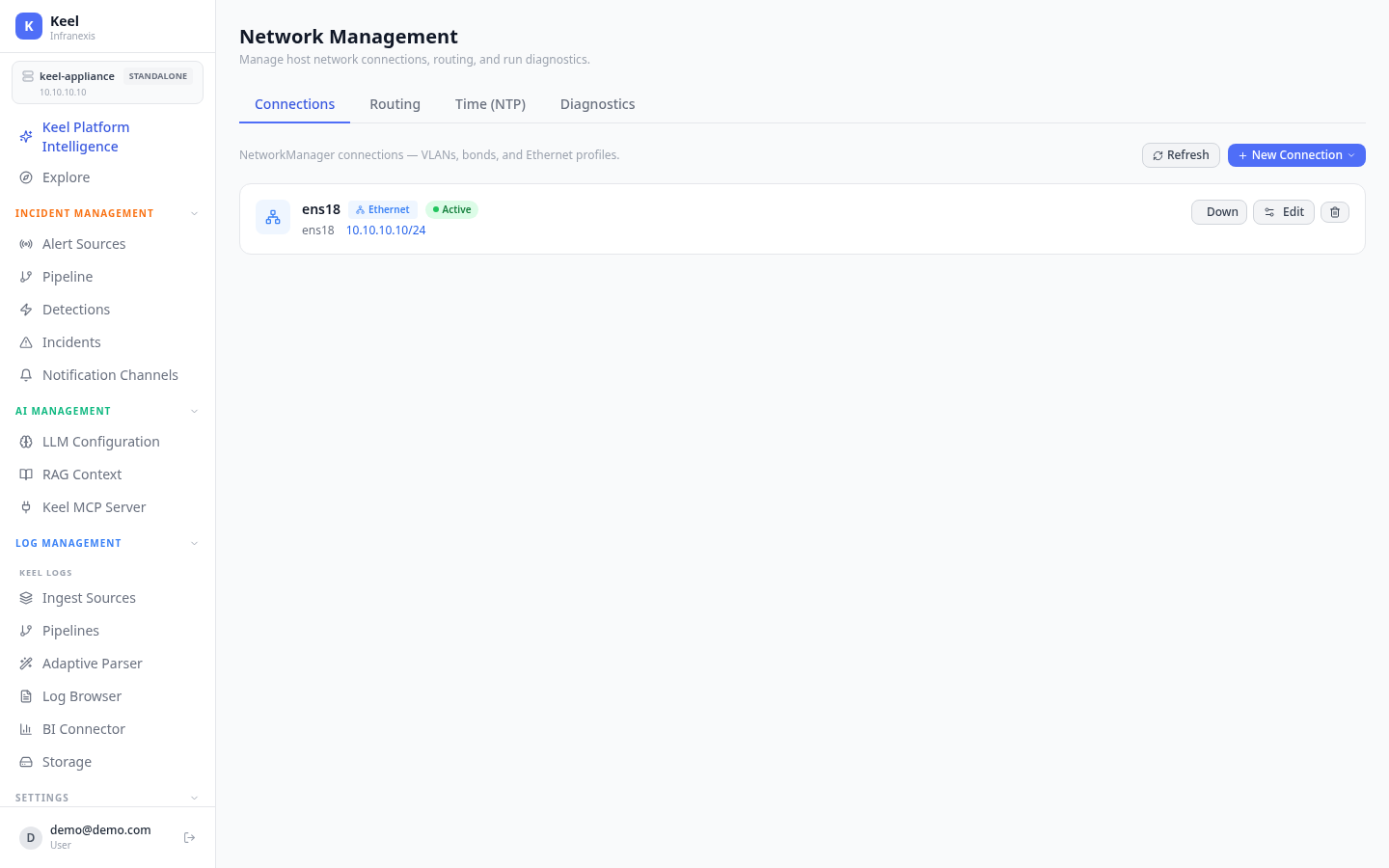
Location in Keel: /settings/network
Network Management lets you manage host network connections, routing, and run diagnostics. It is organised into four areas:
| Area | Purpose |
|---|---|
| Connections | NetworkManager connections — VLANs, bonds, and Ethernet profiles. |
| Routing | Static routes for the host. |
| Time (NTP) | Clock synchronisation. |
| Diagnostics | On-box network diagnostics. |
Under Connections, each interface is listed with its type, state and address — for example ens18, Ethernet, Active, 10.10.10.10/24. Use New Connection to add a profile, Edit to change one, and the up/down toggle to bring an interface online or offline. Refresh re-reads the live state.
SSL / TLS
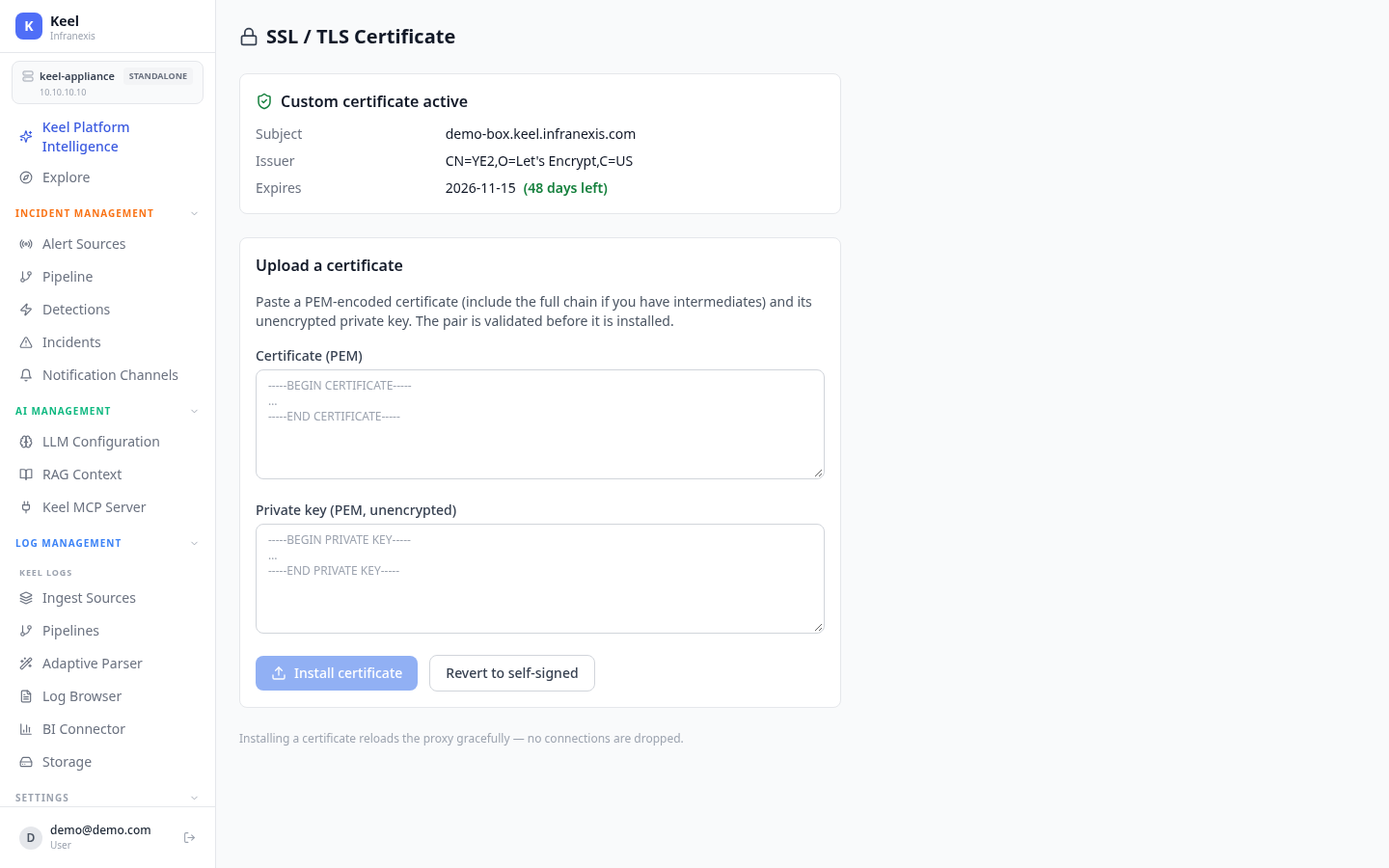
Location in Keel: /settings/ssl
The Keel dashboard is always served over TLS. You can bring your own certificate or fall back to the built-in self-signed one. When a custom certificate is active, Keel shows its Subject, Issuer, and Expires date (with days remaining).
To install your own certificate, use Upload a certificate: paste a PEM-encoded Certificate (PEM) — include the full chain if you have intermediates — and its unencrypted Private key (PEM, unencrypted), then choose Install certificate. Revert to self-signed returns to the built-in certificate.
Validated, and no dropped connections
The certificate/key pair is validated before it is installed. Installing a certificate reloads the proxy gracefully — no connections are dropped.
Firewall
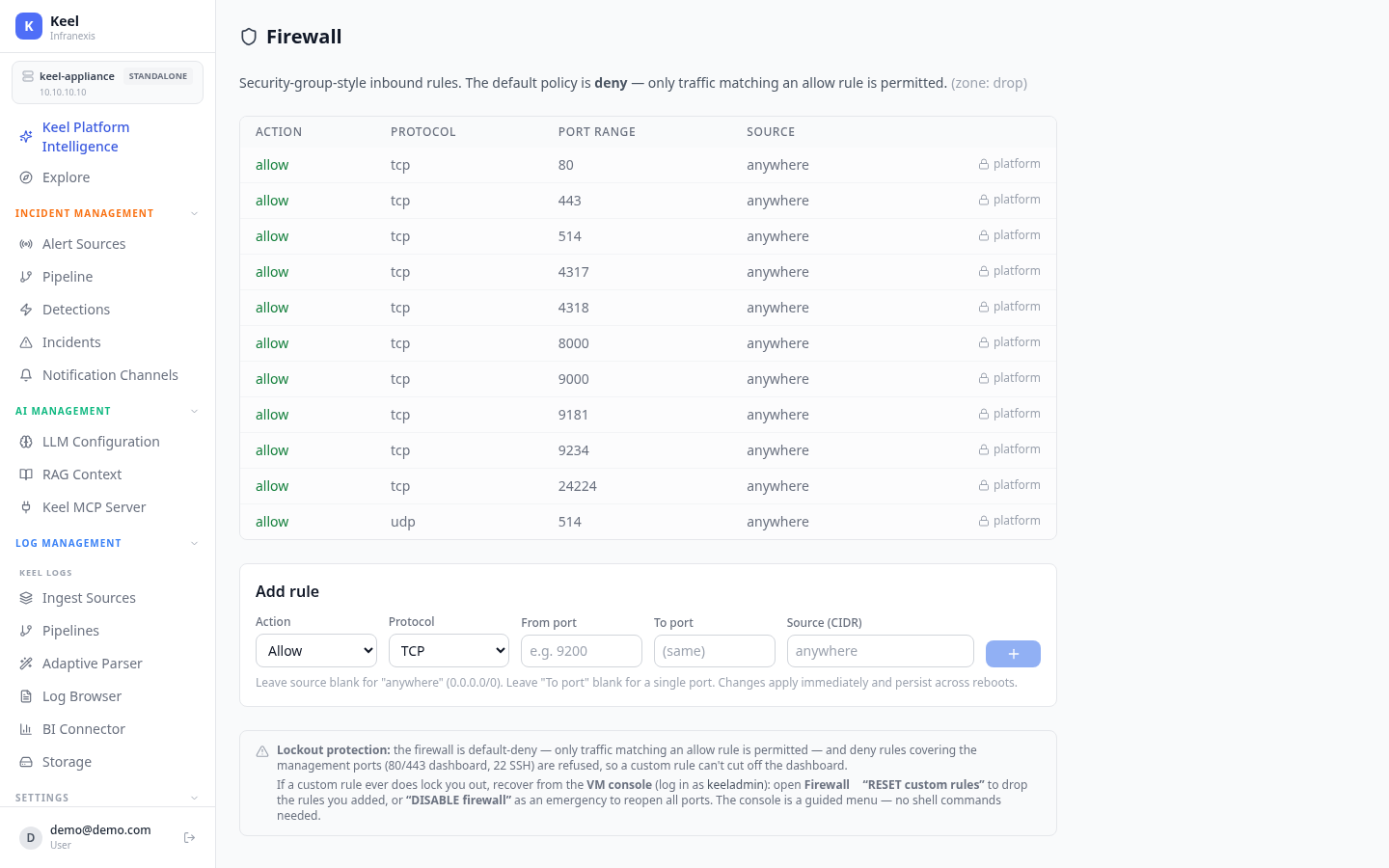
Location in Keel: /settings/firewall
The firewall provides security-group-style inbound rules. The default policy is deny (zone: drop) — only traffic matching an allow rule is permitted. Existing rules are shown in a table:
| Column | Meaning |
|---|---|
| ACTION | allow or deny |
| PROTOCOL | tcp or udp |
| PORT RANGE | Single port or range |
| SOURCE | CIDR, or anywhere |
Use Add rule to create one, setting Action (Allow/Deny), Protocol (TCP/UDP), From port, To port, and Source (CIDR). Leave the source blank for anywhere (0.0.0.0/0), and leave To port blank for a single port. Changes apply immediately and persist across reboots.
Lockout protection and recovery
Because the firewall is default-deny, deny rules covering the management ports (80/443 dashboard, 22 SSH) are refused, so a custom rule can't cut off the dashboard. If a custom rule ever does lock you out, recover from the VM console (log in as keeladmin): open Firewall → RESET custom rules to drop the rules you added, or DISABLE firewall as an emergency to reopen all ports. The console is a guided menu — no shell commands needed.
Related
- Users, roles & teams — who can reach the dashboard once it's on the network
- Notification channels — where to send the self-health alerts referenced in Settings
- Audit logs — see when the TLS certificate or network config was changed